
How To Fix a Laptop That Won’t Connect to HDMI
Written by publishingreporting@logicalposition.com // 2026/11/03 // Computers // Comments Off on How To Fix a Laptop That Won’t Connect to HDMI
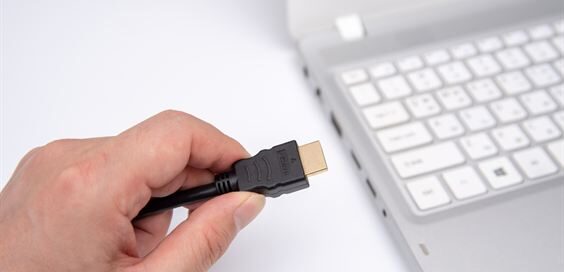
The seminar starts in five minutes. Classmates wait for the presentation, but the projector shows only a blank screen. The slides look perfect on the laptop, yet the audience can’t see them.
An HDMI failure feels especially stressful before a thesis defense or research presentation. Fortunately, the problem often comes from a setting or an overlooked connection rather than broken hardware. A few focused checks can get the display working without turning presentation day into a technical crisis. Keep reading to discover how to fix a laptop that won’t connect to HDMI.
Start With the Obvious
Before opening complicated settings, check the equipment. Confirm that the projector or monitor is powered on. Gently push the HDMI connector into the laptop and display until each end is secure.
Next, check the screen’s input selection. A classroom projector might offer several HDMI inputs, and the remote may still point to the one a previous presenter used. Select the input that matches the physical port. Simple checks sound boring, but they’re worth the first minute.
Try a Fresh Connection
Sometimes devices fail to recognize one another during the initial connection. Unplug the HDMI cable and reconnect it after a few seconds while both devices remain on.
If the screen stays dark, restart the laptop with the external display connected.
Graduate students often move between lecture halls and home workspaces, so a laptop may remember settings from another monitor. Disconnect unnecessary accessories while troubleshooting. A direct connection gives fewer possible points of failure to investigate.
Tell Windows What To Show
A connected screen won’t always display the same content as a laptop automatically. Windows lets users choose how to use an external display.
Press the Windows key and P to open the projection options. Choose Duplicate when the projector should mirror the slides. Choose Extend when separate screen space would help with notes.
If nothing appears, open the Display page under System in Windows Settings. Find the detection option under multiple displays and ask Windows to search again. Confirm that the laptop recognizes the correct screen before adjusting other settings.
Check the Mac Display Settings
Mac users can encounter the same confusion with a lecture-room projector. Open System Settings and select Displays to check whether macOS recognizes the external screen.
If the projector doesn’t appear, hold the Option key to reveal Detect Displays, then select it. Choose the mirroring option if the audience should see the laptop’s screen.
Some Mac laptops also request permission before allowing a new accessory to connect. Watch for that prompt instead of assuming the adapter has failed. Test a slide once the screen appears.
Make Sure the Adapter Fits
Many slim laptops lack a full-size HDMI port. A USB-C adapter or docking station then becomes part of the setup, and compatibility counts.
A few HDMI adapter considerations can prevent a frustrating purchase. Not every USB-C port carries video, even when the connector fits perfectly. Check whether the laptop supports DisplayPort Alternate Mode or an appropriate Thunderbolt connection. The computer’s specifications offer a more reliable answer than the port’s appearance.
Check the adapter’s supported resolution and refresh rate, too. Some adapters work at basic resolutions but struggle with demanding displays.
Bypass the Dock
A docking station makes a crowded desk more manageable, but it adds another device between the laptop and the screen. If a projector refuses to cooperate, remove the dock temporarily.
Connect the display directly through the laptop’s HDMI port or a compatible video adapter. If the direct connection works, investigate the dock’s compatibility or power requirements.
Some docks need a separate power supply, while others depend on the laptop’s capabilities. A compact backup adapter can prove useful when a shared classroom dock causes trouble.
Rule Out a Bad Cable
HDMI cables endure constant handling in classrooms. People unplug them repeatedly, and tight bends can strain connectors. A cable may look fine while an internal fault interrupts the signal.
Try a different HDMI cable that works with another device. If possible, test the original cable with a second display. These comparisons can identify the problem.
Inspect the laptop’s HDMI port for visible damage, but don’t poke inside it with metal objects. If the plug only works at an angle, stop forcing it and contact campus technical support.
Lower the Display Settings
Sometimes the projector recognizes the laptop but shows a black screen or an unstable image. The laptop may send a resolution or refresh rate that the equipment can’t handle.
Open display settings and try a widely supported format, such as 1080p at 60 Hz, if the projector supports it. Select the external screen before making changes.
Once the image appears, adjust the settings gradually if necessary. There’s little reason to chase a high refresh rate for a seminar slideshow. A stable picture counts more.
Update the Graphics Software
When one laptop fails with several known-good displays, outdated graphics software deserves attention. Drivers help the operating system communicate with display hardware.
On Windows, check system updates and look for graphics drivers through the laptop manufacturer’s official support page. Restart after installing relevant updates and test again.
Mac users should review available macOS updates. Avoid random driver download websites, especially on a university-managed computer. If the institution controls software installation, ask its IT team before making changes.
Don’t Forget the Sound
Sometimes the slides finally appear, but a research video plays without audio. That’s a separate problem, not necessarily an HDMI connection failure.
HDMI can carry sound along with video. On Windows, open the sound output settings and select the room’s display or audio system. On a Mac, open System Settings and select Sound to check the output device.
Test a short clip before the presentation. If the room uses separate speakers, follow its setup instructions rather than assuming the projector handles audio.
Check Multiple-Monitor Limits
A dual-monitor desk can be wonderful for writing a dissertation. Adding a lecture-room projector, however, may exceed what a laptop or dock supports.
Computers support different numbers of external displays depending on the model. Disconnect an unused monitor and test the projector alone.
Check the manufacturer’s specifications if the problem only occurs with several screens. Most HDMI splitters duplicate one signal rather than creating independent desktops, so they won’t necessarily provide the extra workspace students expect.
Have a Presentation Backup
Even careful troubleshooting can’t fix every aging campus projector minutes before a presentation. Preparation should include a backup plan rather than endless button pressing.
Save slides in a format that another computer can open. Keep a copy somewhere secure if the laptop fails. Check whether the classroom has an installed computer and how to contact technical support.
For a thesis defense or conference talk, test the actual room equipment in advance whenever possible. Those extra minutes can protect hours of preparation.
Get Back to the Presentation
Learning how to fix a laptop that won’t connect to HDMI starts with the simplest possible failure. A loose connector or incorrect input deserves attention before anyone considers replacing hardware.
Work through one check at a time and notice what changes. With some preparation and a compatible adapter, the next classroom connection can feel routine instead of becoming the most stressful part of the day.
Image Credentials: JYPIX, 225634186


 college budgeting worksheet

 If you want to contribute tutorials, news or other student-related tips or stuff:
 Share our student library with your facebook friends:
 Do you have any ideas or suggestions you would like to make?
 If you like what we do, please subscribe to our
 All content Copyright © 2012-13 SayStudent.com. Part of nBuy Education Network.